

Google My Business in 2026: How to Claim, Verify, Fix and Grow Your Google Business Profile
 Catalin Dinca
When people need a plumber, a dentist or a bakery, they rarely start on a company website. They search Google or open Maps, compare a few listings and call or visit the one that looks most trustworthy. The listing they see is a Google Business Profile, the tool most people still know as Google My Business.
A complete, verified profile can bring calls and visits without paying for ads. An unclaimed, outdated or suspended one quietly sends customers to competitors. And because AI assistants increasingly answer local questions too, the accuracy of your business information matters in more places than ever.
Most guides stop at "claim your listing and add photos". This one goes further: how to choose the right path for your situation, what to do when verification fails, a 30-day launch plan, the review rules that get profiles in trouble, how to connect the profile to your website and how to measure what it brings in.
TL;DR
- Google My Business and Google Business Profile are the same free tool. It controls how your business appears on Google Search and Maps.
- Search for your business before you create anything. Claim an existing listing or request access instead of creating a duplicate.
- If someone else manages your profile, request access. Google gives the current owner 3 days to respond; if they don't, you may be able to claim it.
- Verification methods are chosen by Google. Video verification is recommended when available, postcard codes usually arrive within 14 days and reviews can take up to 5 business days.
- Never pay or filter for reviews. Incentives and asking only happy customers ("review gating") break Google's policies.
- Connect the profile to your website and measure it: consistent name, address and phone, LocalBusiness structured data and a UTM-tagged website link.
Table of Contents
- What Is Google Business Profile?
- Which Situation Are You In?
- How to Claim an Unclaimed Profile
- How to Get Access to a Profile Someone Else Manages
- How to Create a New Profile Without Creating Problems
- Verification: Methods, Timelines and Fixes
- Your First 30 Days: A Launch Plan
- Write the Profile Customers Actually Need
- Grow Reviews Without Breaking Google's Rules
- Connect Your Profile to Your Website
- Measure What Your Profile Brings In
- Common Problems and How to Fix Them
- Google Business Profile and AI Search
- How Rank Tim Helps
- FAQ
- Sources
- Recommended Articles
What Is Google Business Profile?
Google Business Profile is a free tool for managing how your business appears in Google Search and Google Maps: your name, address, phone number, hours, photos, reviews, services, products and updates. Google My Business was its former name, so both terms refer to the same product.
You manage the profile directly from Google Search or Maps while signed in to the Google Account that owns it. Businesses with many locations can use Business Profile Manager to handle them in one place.
According to Google, local results are mainly based on three factors:
- Relevance: how well your profile matches what someone is searching for.
- Distance: how far your business is from the person searching, or from the location in their search.
- Prominence: how well-known your business is, based on information such as links to your business and how many reviews you have.
Google also states that there's no way to request or pay for a better local ranking. The only path is a complete, accurate profile and a real reputation.
Which Situation Are You In?
Before you do anything, search Google for your business name and city. What you see determines your path.
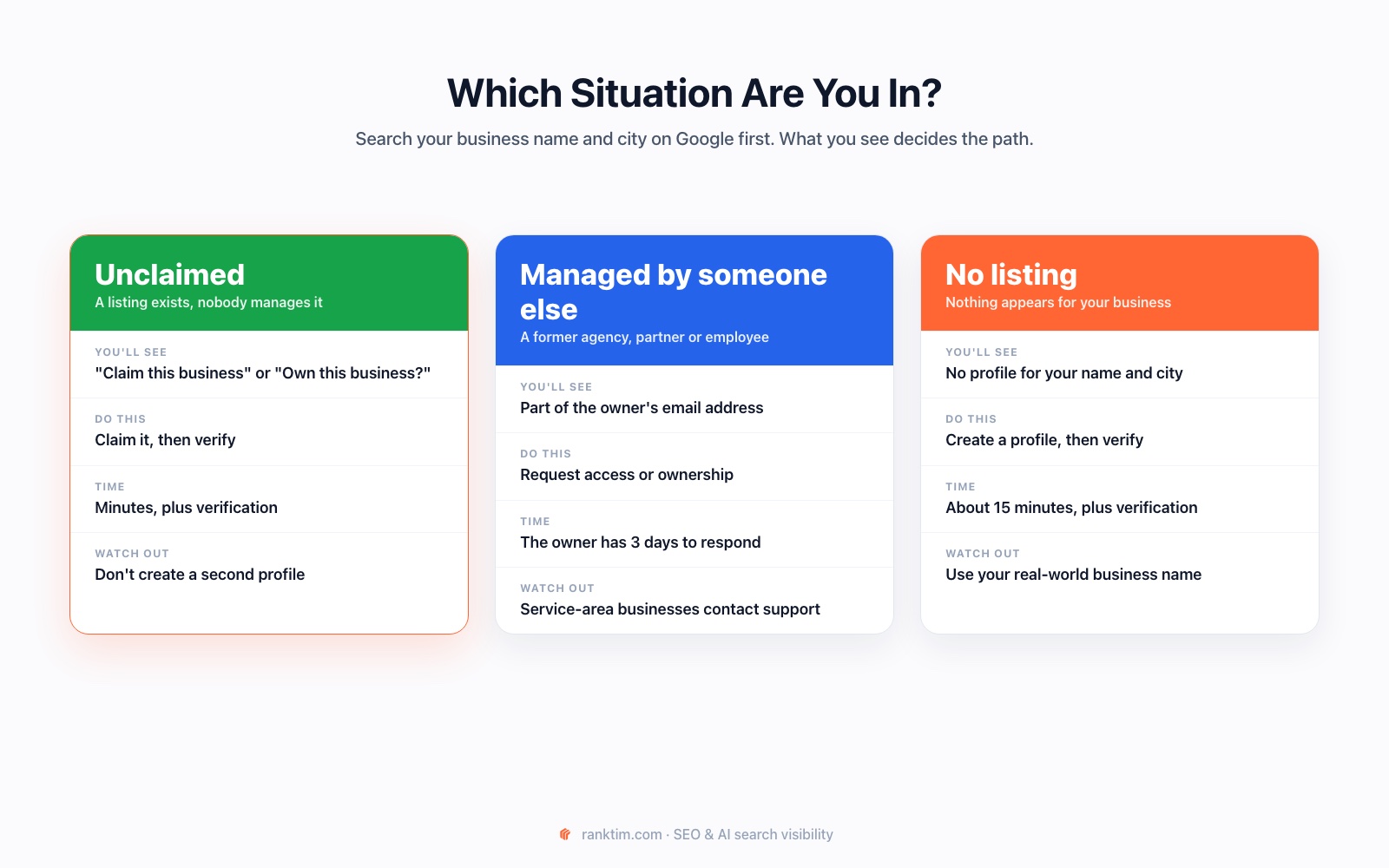
| What you see | Your situation | What to do |
|---|---|---|
| "Claim this business" or "Own this business?" | Unclaimed listing | Claim it and verify ownership |
| Part of someone else's email address | Managed by someone else | Request access or ownership |
| No profile for your business | No listing | Create a new profile and verify it |
| Two profiles for the same business | Duplicate | Keep and verify one; ask Google to remove the other |
How to Claim an Unclaimed Profile
Many profiles are created automatically from public information. To take control of one:
- Search for your business on Google or Maps and open the profile.
- Click Claim this business or Own this business?, then Manage now.
- Follow the prompts to verify that you own or manage the business.
Once verified, you can edit every field, reply to reviews and see performance data.
How to Get Access to a Profile Someone Else Manages
This is common when a former agency, partner or employee set up the profile. When you open it, Google shows part of the current owner's email address and lets you request access.
- Choose the level of access you need: ownership if it's your business, or management if you work for it.
- Add your relationship to the business and your contact details, then submit.
- Google emails the current owner, who has 3 days to respond.
- If they don't respond within 3 days, you may get the option to claim the profile yourself. Google notes that this option isn't always available.
- If the request is rejected, you can still suggest edits to the profile and appeal the decision.
Service-area businesses without a physical shop or office, such as plumbers or cleaners, need to contact Google support instead of using the standard request form.
How to Create a New Profile Without Creating Problems
If no profile exists, create one at business.google.com/add or from the menu in Google Maps. Along the way:
- Use your real-world business name, exactly as it appears on your signage, website and documents. Adding keywords or locations to the name breaks Google's guidelines.
- Choose the most specific primary category, such as "Bakery" rather than "Store". You can add more categories later.
- Add an address only if customers can visit you there. Service-area businesses can hide their address and list the areas they serve instead.
- Add a phone number and website that customers can actually use.
- Check Google's suggestions carefully. If Google shows a matching existing business, claim that one instead of creating a duplicate.
Verification: Methods, Timelines and Fixes
Verification proves you're allowed to manage the profile. Google decides which methods you can use based on your business type, location and other factors; you can't change them.
| Method | How it works | Good to know |
|---|---|---|
| Phone or text | You receive a code by call or SMS | Use a number a person can answer; automated phone menus can't receive the code |
| You receive a code by email | Use a business email address you can access | |
| Video | You record a video, or join a live video call, showing your location, equipment and proof of management | Google recommends video when it's available. Live calls only happen during your business hours |
| Postcard | A code is mailed to your business address | Most codes arrive within 14 days and expire after 30 days |
After you submit, Google may review the verification, which can take up to 5 business days.
What to do when verification fails
- Video rejected: record again in one continuous take. Show the street, signage or other proof of location, the inside of the business or your tools of the trade, and proof that you manage the business, such as unlocking the door or showing business documents.
- Code never arrived: check the address or phone number for typos, then request a new code. Don't create a new profile.
- No verification option shown: make sure the profile follows Google's guidelines, especially the business name, address and category. Profiles that look inconsistent often get limited options.
- Verification keeps failing: contact Google Business Profile support from the help center rather than trying again with a new profile.
Your First 30 Days: A Launch Plan
Verification is the start, not the finish. A simple four-week plan gets a new or neglected profile into shape.
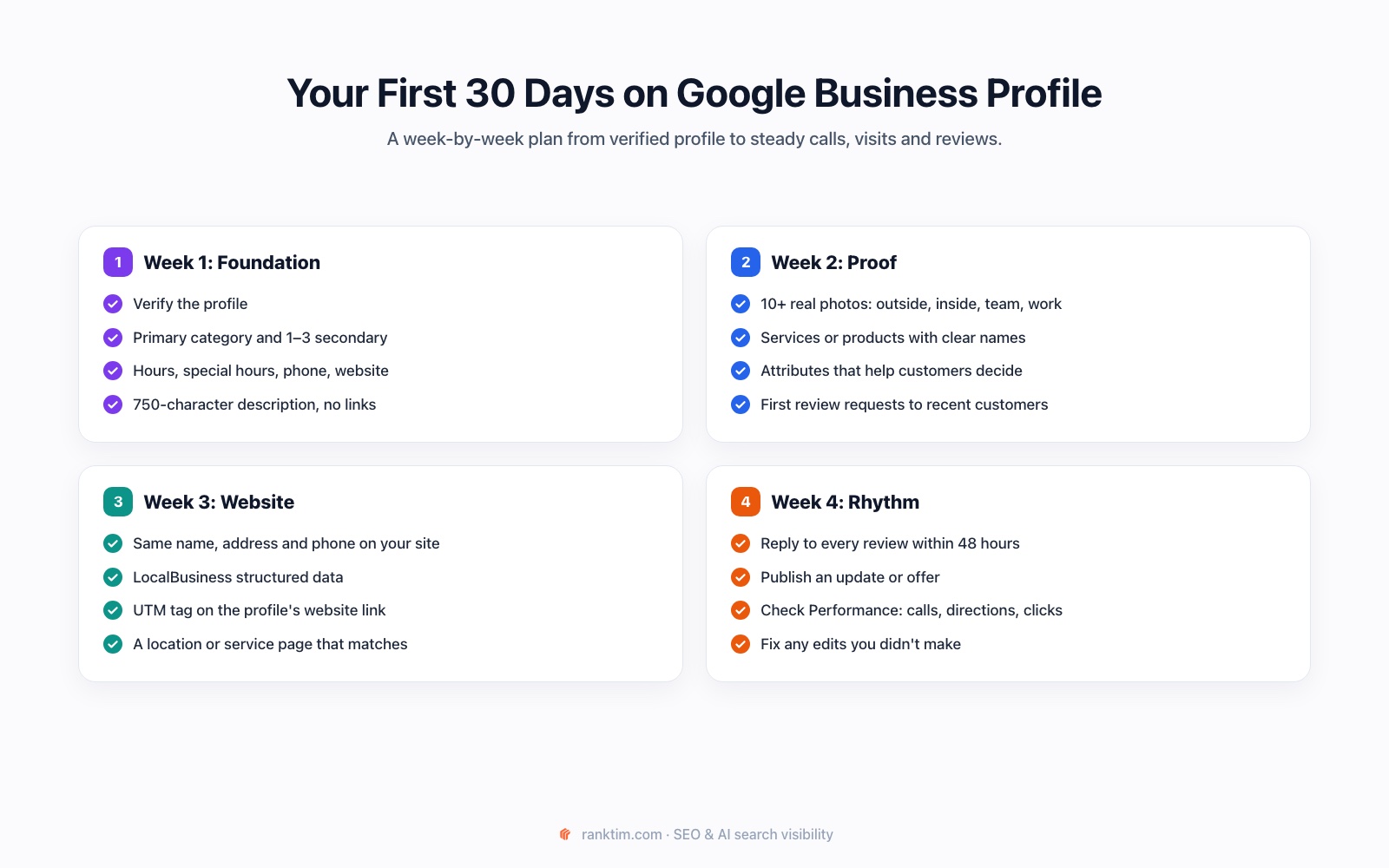
| Week | Focus | Tasks |
|---|---|---|
| 1 | Foundation | Verify; set the primary and secondary categories; add hours, special hours, phone and website; write the description |
| 2 | Proof | Upload real photos; add services or products; set attributes; ask recent customers for reviews |
| 3 | Website | Match name, address and phone on your site; add LocalBusiness structured data; tag the website link with UTM parameters |
| 4 | Rhythm | Reply to every review; publish an update; review Performance; check for edits you didn't make |
Write the Profile Customers Actually Need
Every field should help a customer decide. The essentials:
- Categories: one specific primary category, plus secondary ones only if they describe what your business is, not every service you offer.
- Description: up to 750 characters. Explain what you do, who you serve, where and what makes you different. Google doesn't allow URLs, HTML, promotions or prices in the description.
- Hours: regular hours plus special hours for holidays. Wrong hours are one of the fastest ways to lose trust.
- Services and products: clear names and short descriptions, written the way customers search.
- Attributes: details like accessibility, payment methods or outdoor seating that help people choose before they arrive.
- Photos: real, recent images of the outside, inside, team and work. Customers want to recognize the place when they get there.
For a deeper look at writing services and descriptions that AI assistants can understand, read our guide on optimizing your Google Business Profile for AI recommendations.
Grow Reviews Without Breaking Google's Rules
Reviews influence both customers and prominence, but the rules are strict. Google's policies allow you to ask customers to share genuine experiences. They prohibit:
- Incentives: payment, discounts, free products or services in exchange for a review, or for changing or removing a negative one.
- Review gating: discouraging negative reviews or selectively asking only happy customers.
- Scripted content: asking customers to include specific content in their review.
- Fake engagement: reviews from staff, friends posing as customers or bought from third parties.
What works and stays within the rules:
- Ask every customer at the right moment, for example right after a completed job or purchase.
- Make it easy with a short link or QR code to your review form.
- Reply to every review, positive and negative, within a day or two. Thank people specifically and address problems calmly.
- Use negative reviews to fix real issues, then say what you changed.
Connect Your Profile to Your Website
Your profile and website should tell the same story. This helps customers, search engines and AI assistants trust that both describe the same business.
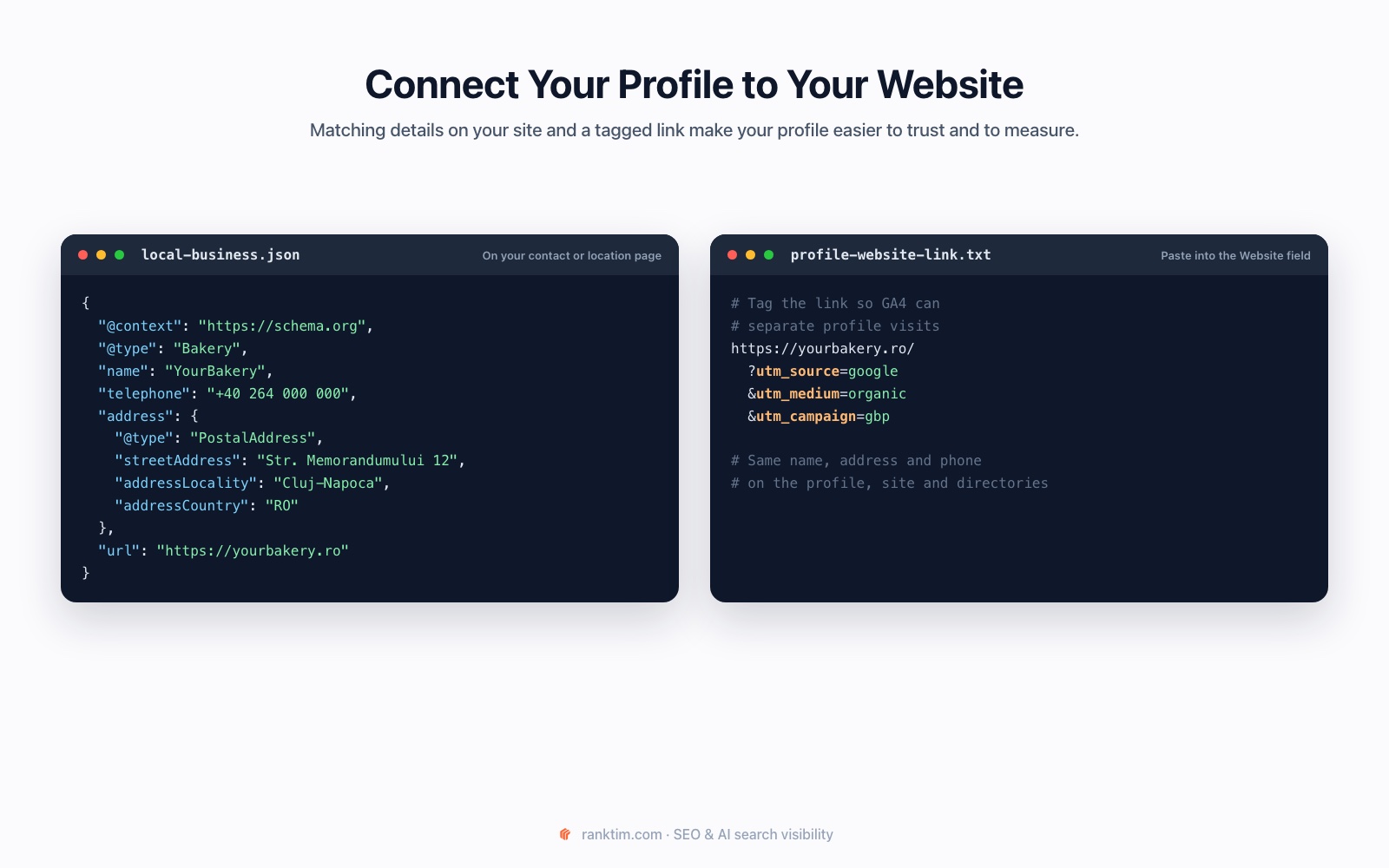
- Consistent name, address and phone (NAP): identical on your profile, website, social profiles and directories.
- LocalBusiness structured data: add JSON-LD with your name, address, phone, hours and URL to your contact or location page. Google's documentation explains the supported properties; our schema markup guide covers implementation.
- A matching landing page: link the profile to the page that best fits the customer, such as a location or service page, not always the homepage.
- A tagged website link: add UTM parameters, for example
utm_source=google&utm_medium=organic&utm_campaign=gbp, so GA4 can show visits from the profile separately. Google's Campaign URL Builder creates them for you.
Measure What Your Profile Brings In
Business Profile includes a Performance view. Depending on your business type, it can show:
- Views and searches: how many people saw your profile and which searches led to it.
- Calls: clicks on your call button.
- Website clicks: clicks to your website.
- Directions: requests for directions to your business.
- Bookings and messages: where these features apply.
Combine it with GA4, which shows what visitors from your tagged website link do on your site, and with Search Console for your website's local queries. Track your most important local searches over time, because ranking can vary a lot from one street to the next.
Common Problems and How to Fix Them
| Problem | Likely cause | What to do |
|---|---|---|
| Profile suspended | Information that breaks Google's guidelines, such as keywords in the name or an ineligible address | Fix the issue, then appeal through Google's appeals tool. Appeals can be submitted only once, and Google warns not to create a new profile for the same business |
| Duplicate profiles | Automatic listings or someone else creating a profile | Keep and verify one profile, then ask Google support to remove or merge the duplicate |
| Lost access | A former employee or agency owns the profile | Request ownership; if there's no answer within 3 days, check whether you can claim it |
| Details changed without you | User suggestions or Google updates | Review pending updates in your profile, accept correct ones and fix inaccurate ones |
| Inappropriate review | A review that breaks Google's content policies | Report it from your profile. Google removes only policy-breaking reviews, so reply professionally in the meantime |
See if AI recommends your business for local questions
Rank Tim runs local prompts like "best bakery in [city]" across ChatGPT, Google AI Mode, Gemini and Perplexity, shows whether your business is mentioned and lists the sources AI trusts, from Google Maps to review sites.
Get a Free AI Visibility AuditGoogle Business Profile and AI Search
People now ask AI assistants questions like "which bakery near the center is open on Sunday?" The answers draw on business information from maps, review sites, directories and websites; check the sources behind a few local answers in your category and you'll usually see maps listings and review platforms among them.
That makes consistency more important than ever. If your hours, services or address differ between your profile, website and directories, assistants may describe your business incorrectly or leave it out. Our guides on local SEO for AI and "near me" searches and fixing what AI says about your brand go deeper.
How Rank Tim Helps
Rank Tim doesn't replace Google Business Profile; you manage the profile itself in Google. Rank Tim helps with everything around it:
- Local AI visibility: track prompts like "best [service] in [city]" across ChatGPT, Google AI Mode, Gemini and Perplexity, with your project's target country, and see whether your business is recommended.
- Sources AI trusts: the Citations and Opportunities views show which maps, review sites and directories AI cites in your category, so you know where your information must be accurate.
- Website signals: the AEO Audit in Site Audit checks structured data, discovery and rendering on your site, the pages your profile links to.
- Traffic and results: with Google Analytics and Search Console connected, see visits from your profile link and AI assistants next to your organic data.
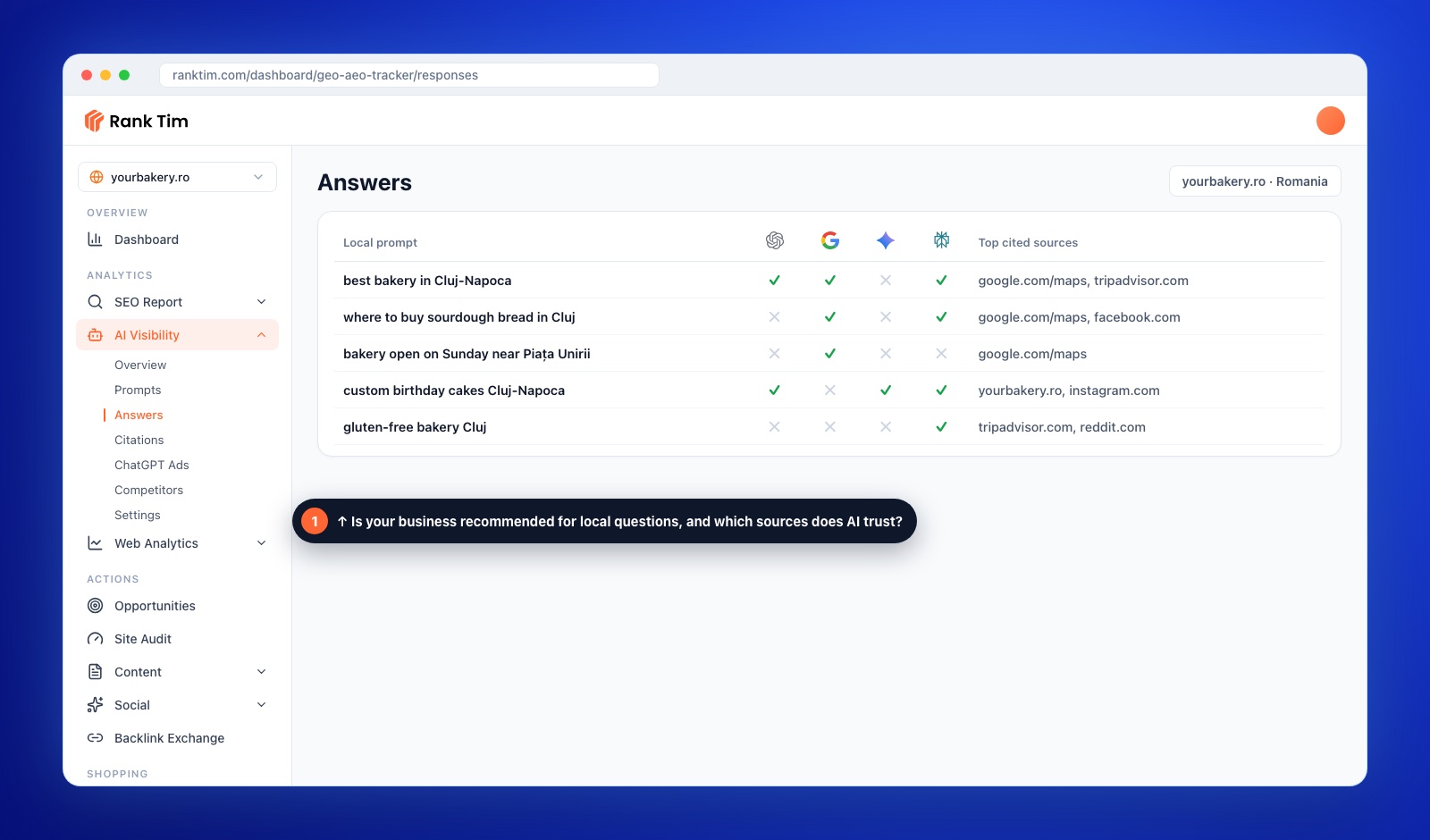
You can start with a free AI visibility audit to see how AI assistants describe your business today.
FAQ
Is Google My Business the same as Google Business Profile?
Yes. Google My Business is the former name of Google Business Profile. Both refer to the same free tool for managing how your business appears on Google Search and Maps.
Is Google Business Profile free?
Yes. Creating, verifying and managing a profile is free. Google also states that you can't pay for a better local ranking.
How long does Google Business Profile verification take?
It depends on the method. Phone, text and email codes arrive quickly, postcard codes usually arrive within 14 days, and Google may take up to 5 business days to review a verification.
What should I do if my Google Business Profile is suspended?
Fix whatever breaks Google's guidelines, then submit an appeal through Google's appeals tool. Appeals can be submitted only once, and you shouldn't create a new profile for the same business.
Can I get a Google Business Profile without a physical address?
Yes. Service-area businesses that visit or deliver to customers can hide their address and list the areas they serve instead.
Can I offer a discount in exchange for Google reviews?
No. Google prohibits incentives such as payment, discounts or free products in exchange for reviews. You can ask every customer to share an honest review, without rewards or filtering.
How many characters can a Google Business Profile description have?
Up to 750 characters. Google doesn't allow links, HTML or promotional content such as prices and special offers in the description.
Does my Google Business Profile affect ChatGPT and other AI assistants?
Indirectly. AI assistants answer local questions using business information from maps, review sites, directories and websites. Accurate, consistent details across all of them improve the chances that assistants describe and recommend your business correctly.
Sources
- Google Business Profile Help: Request ownership of a Business Profile
- Google Business Profile Help: Verify your business on Google
- Google Business Profile Help: Edit your Business Profile
- Google Business Profile Help: Guidelines for representing your business on Google
- Google Business Profile Help: Tips to improve your local ranking on Google
- Google Maps Help: Prohibited and restricted content
- Google Business Profile Help: Business Profile performance
- Google Business Profile Help: Fix suspended or disabled profiles
- Google Search Central: Local business structured data
- Google Analytics: Campaign URL Builder
Recommended Articles
- How to Optimize Your Google Business Profile for AI Recommendations
- Local SEO in the AI Era: How to Get Recommended for "Near Me" Searches
- How to Measure AI Search Visibility: Search Console, Bing AI Performance and GA4
- Schema Markup for AI Search: JSON-LD Guide
- How to Fix What AI Says About Your Brand
Turn Your Local Visibility Into Customers
Track how Google and AI assistants present your business, fix the website signals behind your profile and measure the calls, visits and leads it brings.
Start for Free
Catalin Dinca
Written by Catalin Dinca