

Use Claude with Google Analytics 4 and Search Console
Ask Claude about your traffic, search queries, AI referrals and SEO opportunities, using the GA4 property and Search Console site you connected in Ranktim — read-only.
What Claude can access
get_analytics_overviewGA4 traffic, engagement, key events and AI referrals plus Search Console clicks and position, compared with the previous period.
Readget_search_performanceSearch Console queries or pages with clicks, impressions, CTR and average position.
Readget_page_performanceA page's GA4 and Search Console metrics side by side, kept as separate sources.
Readget_ai_referral_trafficGA4 sessions referred by AI assistants, by assistant, daily trend and landing page.
Readfind_search_opportunitiesPage-two queries, low-CTR queries and declining queries from Search Console.
Read
- Windows of 7, 28, 90, 180 or 365 days, within your plan's Google Analytics history (365 days on Pro, Growth and Enterprise), with the previous period for comparisons when it is cached.
- GA4 (on-site sessions, users, engagement, key events, AI referrals) and Search Console (Google clicks, impressions, CTR, position) are always reported as separate sources.
- Claude reads Ranktim's cached reports, refreshed automatically every day and when a new window is requested. Answers say when the data was fetched.
- Only the website you choose, with its selected GA4 property and Search Console site. Claude cannot see other websites, other properties or other Ranktim accounts.
- The five Google Analytics and Search Console tools are read-only: they cannot change GA4 or Search Console settings, publish content or edit your website.
- Ranktim reads Google with the read-only permissions you granted when connecting (Analytics read-only, Search Console read-only) and stores a copy of the reports. Claude only reads that copy.
- Your Google tokens stay encrypted in Ranktim. Claude receives a Ranktim access token only, never your Google password or Google tokens.
- Ranktim's MCP server also has one unrelated action tool (run_site_audit). You can turn action tools off, or disconnect Claude, in Settings → MCP Server at any time.
Before you start
- An active Pro, Growth or Enterprise plan.
- Your website added in Ranktim.
- A Google account with access to the site's GA4 property, and to its Search Console site for search metrics.
- Claude (web, desktop or mobile) with custom connectors, or Claude Code.
Connect Google Analytics and Search Console in Ranktim
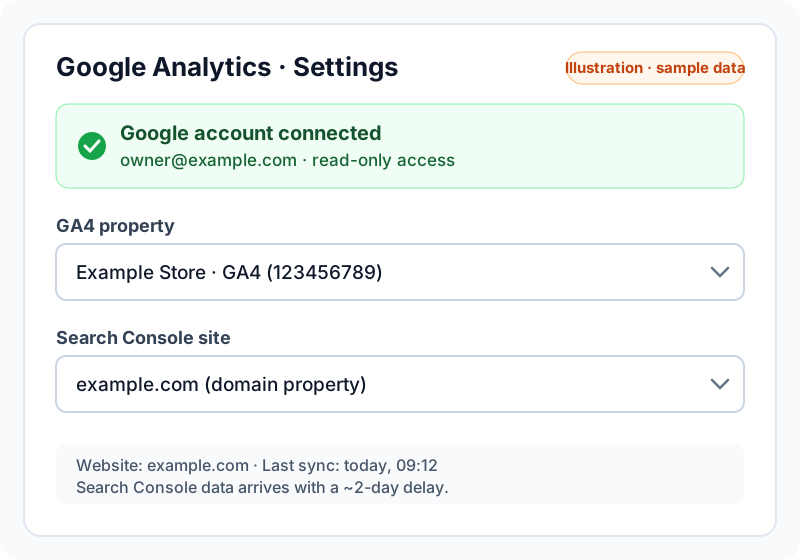
Open Google Analytics → Settings in Ranktim and connect your Google account. Allow Search Console when Google asks, if you want search metrics. Already connected? Check that the status shows Connected.
Connect Google AnalyticsSelect the website, GA4 property and Search Console site
Pick the website in Ranktim's website switcher, then choose its GA4 property and Search Console site on the same settings page. Claude only reads the property and site selected here, and you can change them at any time.
Add Ranktim's MCP server in Claude
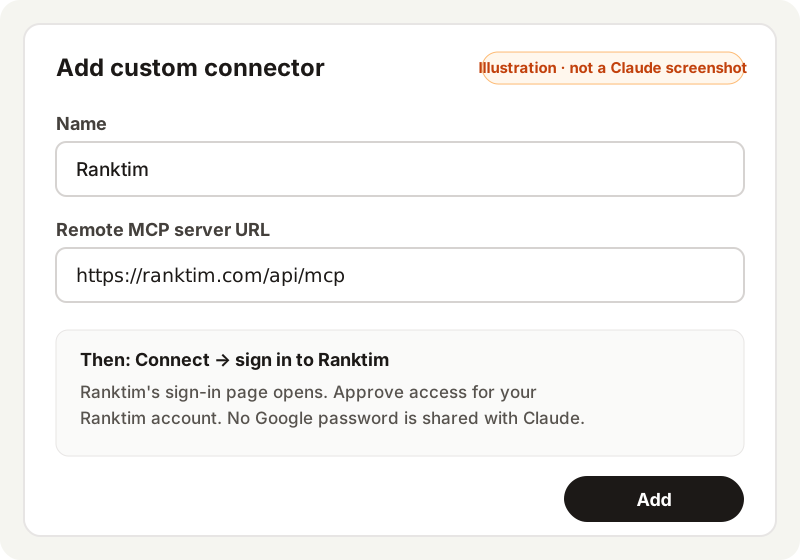
In Claude, open Settings → Connectors → Add custom connector, name it Ranktim and paste the server URL below. In Claude Code, run: claude mcp add --transport http ranktim https://ranktim.com/api/mcp
https://ranktim.com/api/mcp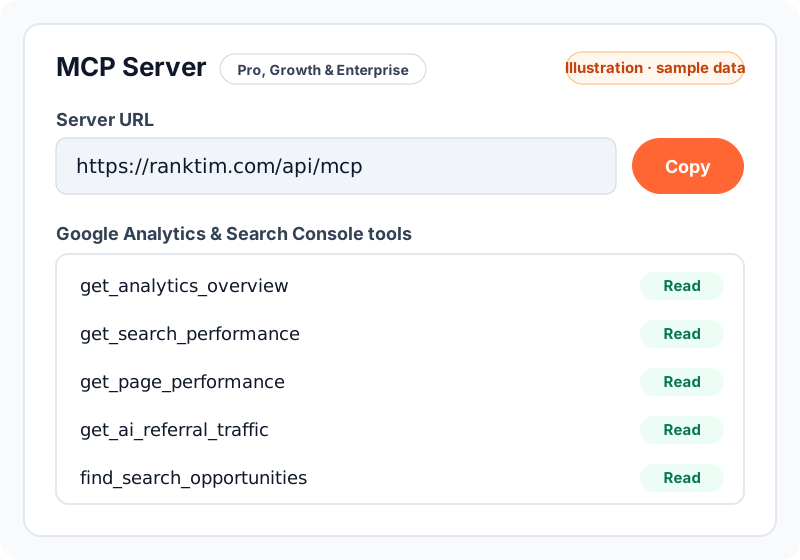
Sign in to Ranktim and authorize the connector
Click Connect. Ranktim's sign-in page opens: sign in with the account that owns the website and approve access on the consent screen. Then turn on the Ranktim connector in a chat from the tools menu.
Try the example prompts
Copy a prompt below. If you have several websites, name the domain, for example "for example.com". The first request for a new window can take about a minute while Ranktim fetches it from Google.
“Give me my GA4 and Search Console overview for the last 28 days, compared with the previous period.”
Traffic, engagement, key events and AI referrals from GA4, plus clicks, impressions, CTR and position from Search Console, each with its change.
get_analytics_overview“Show my top 20 Search Console queries by clicks for the last 28 days.”
The queries that bring the most Google clicks, with impressions, CTR and average position.
get_search_performance“How is /pricing performing? Show GA4 and Search Console metrics separately.”
Sessions, users and key events from GA4 next to clicks, impressions and position from Search Console for that page.
get_page_performance“How much traffic did AI assistants send us in the last 90 days, and which pages did they land on?”
AI-referred sessions by assistant, their share of all sessions, the daily trend and top landing pages.
get_ai_referral_traffic“Find Search Console queries on page two with at least 100 impressions and tell me which to improve first.”
Queries averaging positions 11–20, sorted by impressions: candidates for a content or title refresh.
find_search_opportunities“Which Search Console queries lost the most clicks compared with the previous 28 days?”
Queries that lost at least 30% of their clicks, with clicks and positions before and after.
find_search_opportunities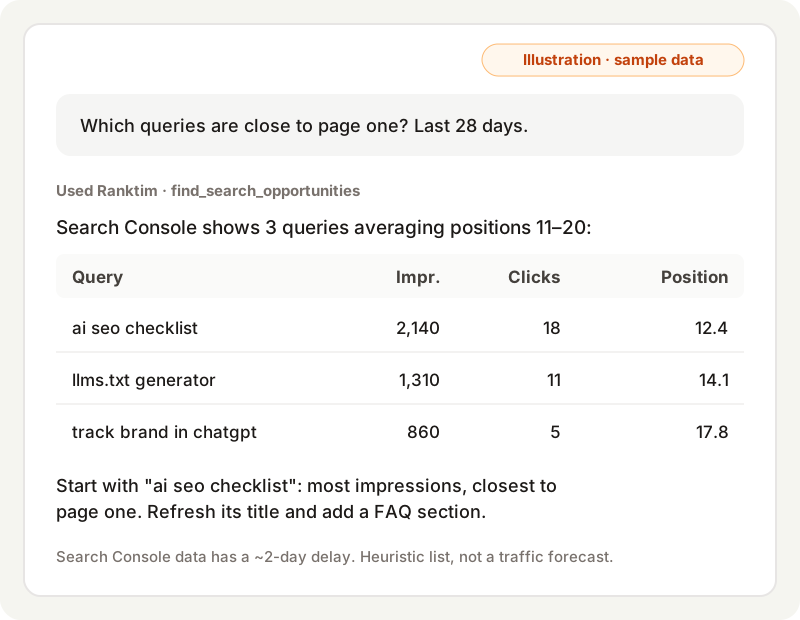
- Search Console finalizes data with a ~2-day delay, so the most recent days are incomplete.
- Lists cover the top 100 GA4 landing pages and the top 1,000 Search Console queries or pages per window, so long tails are not exhaustive.
- GA4 sessions and Search Console clicks measure different things and are not expected to match.
- The first request for a window Ranktim has not cached yet returns "data pending" while it fetches from Google. Ask again after about a minute.
- Not available yet: keyword cannibalization (Ranktim stores query and page data separately) and period-over-period changes for individual pages.