

How to Auto-Publish SEO Articles to WordPress: A Step-by-Step Tutorial
 Catalin Dinca
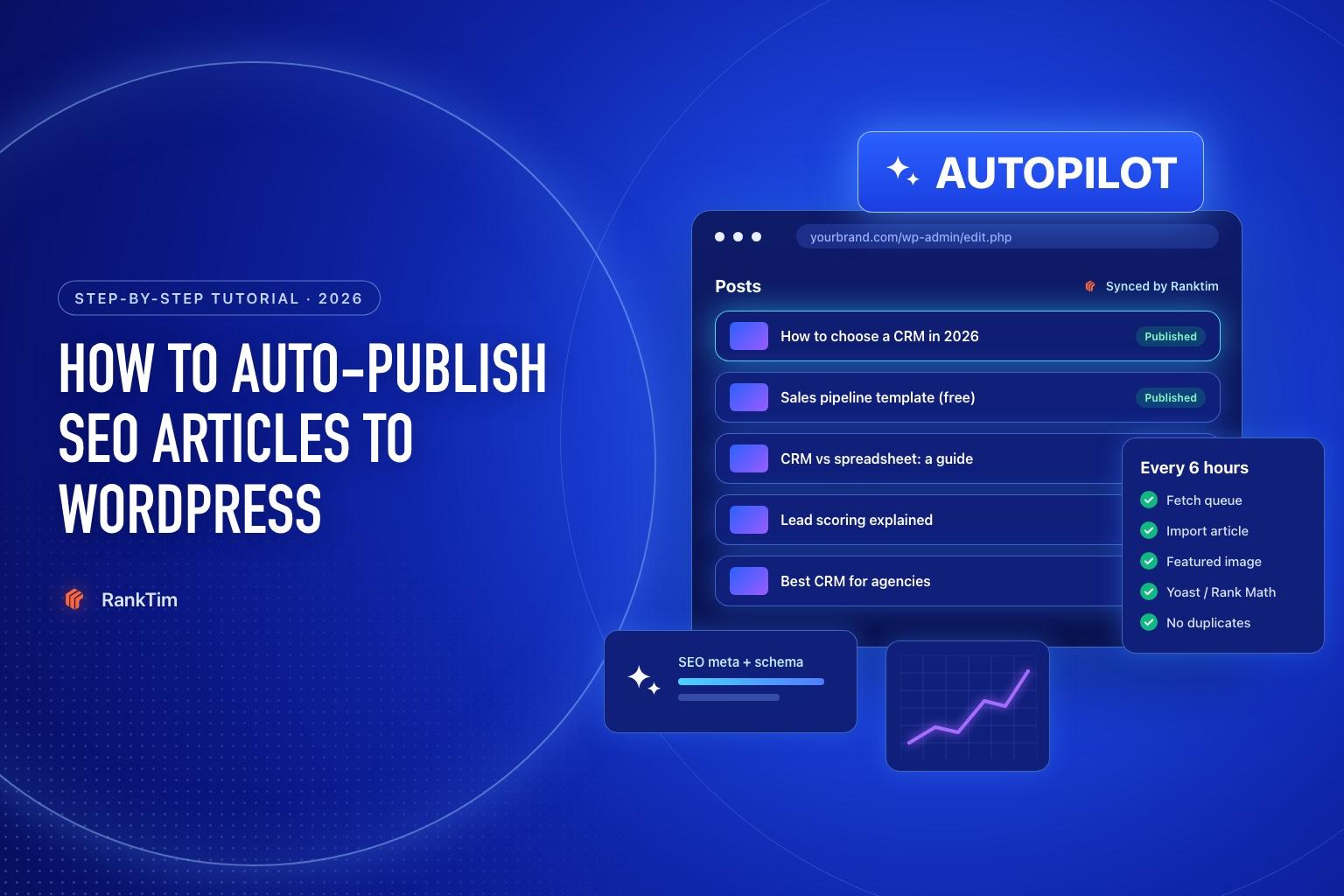
Most blogs don't fail because the articles are bad. They fail because publishing stops. A busy month turns into three, the content calendar goes stale, and the rankings that consistency would have built never arrive.
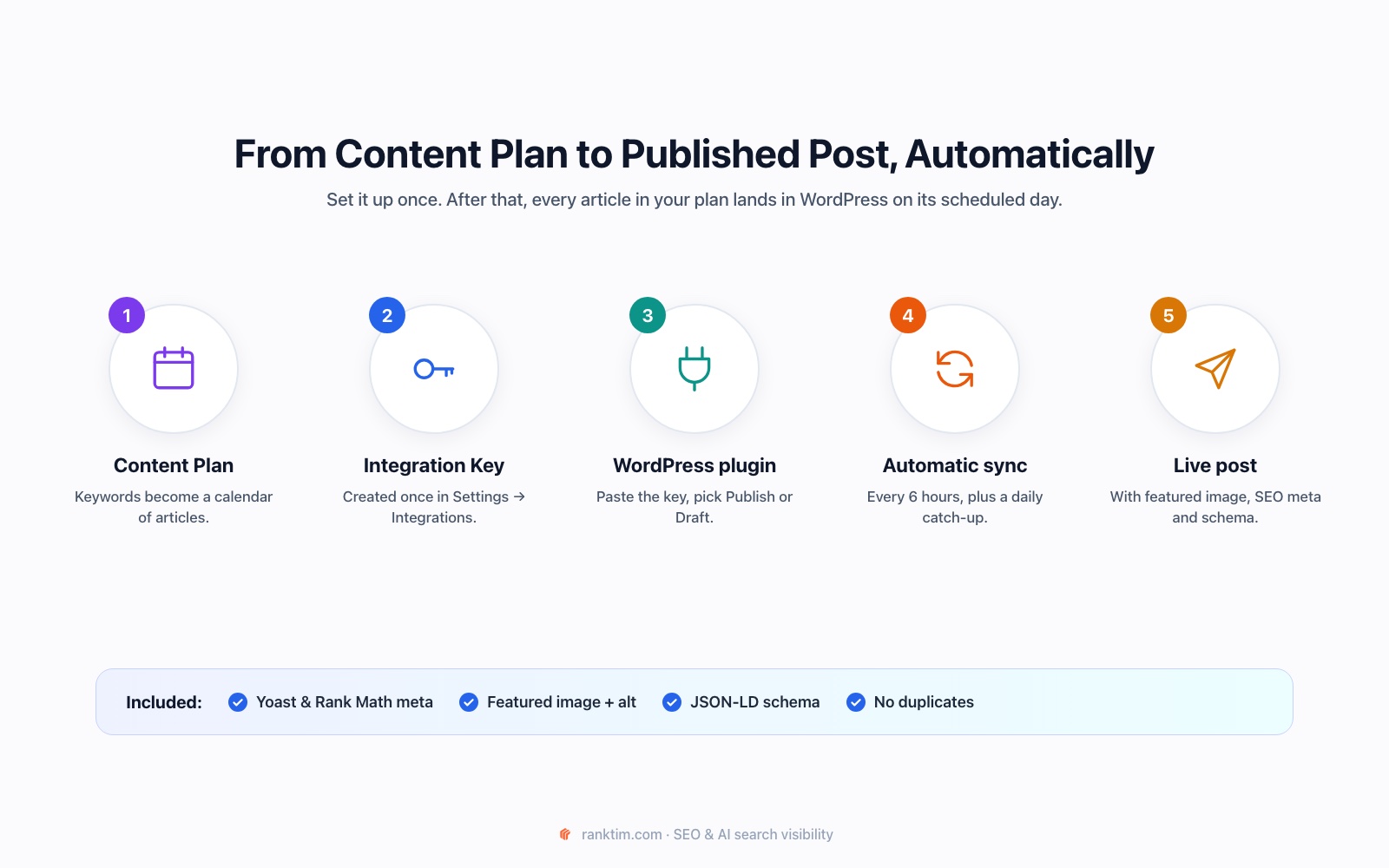
Automating the publishing step removes that failure point. In this tutorial you will connect RankTim to WordPress so that each article in your content plan is imported on its scheduled day, with the formatting, featured image, SEO title, meta description and schema already in place. You decide whether it goes live immediately or waits as a draft.
Time needed: about 15 minutes.
What You Need
- A WordPress site running WordPress 5.8 or newer and PHP 8.0 or newer, and an administrator account.
- A RankTim plan that includes Content Plan: Starter, Content Plus, Pro, Growth or Enterprise.
- About 15 minutes.
It works alongside Yoast SEO and Rank Math, so you can keep your current SEO plugin.
Step 1: Build Your Content Plan
The plugin publishes what is in your content plan, so start there. In RankTim, open Content Plan and click Create Plan:
- Date Range: up to 30 days per plan.
- Target Domain / Website: the site the articles are for.
- Context / Keywords: the topics, products and keywords you want to cover. Be specific: "CRM for startups, sales pipeline templates, lead scoring for small B2B teams" produces far better topics than "CRM".
- Generation Language: the language your readers search in.
- Include YouTube Videos (optional): embeds relevant videos in the articles.
Click Generate Content Plan. You get a calendar of article topics, one per scheduled day, which you can review and edit before anything is written or published.
Step 2: Create a WordPress Integration Key
The key is how the plugin proves it is allowed to fetch your articles.
- In RankTim, go to Settings → Integrations.
- Choose WordPress.
- Enter an Integration Name (for example "Company blog") and choose a Post Mode: Publish Directly or Save as Draft. You can change this later.
- Click Generate Integration Key.
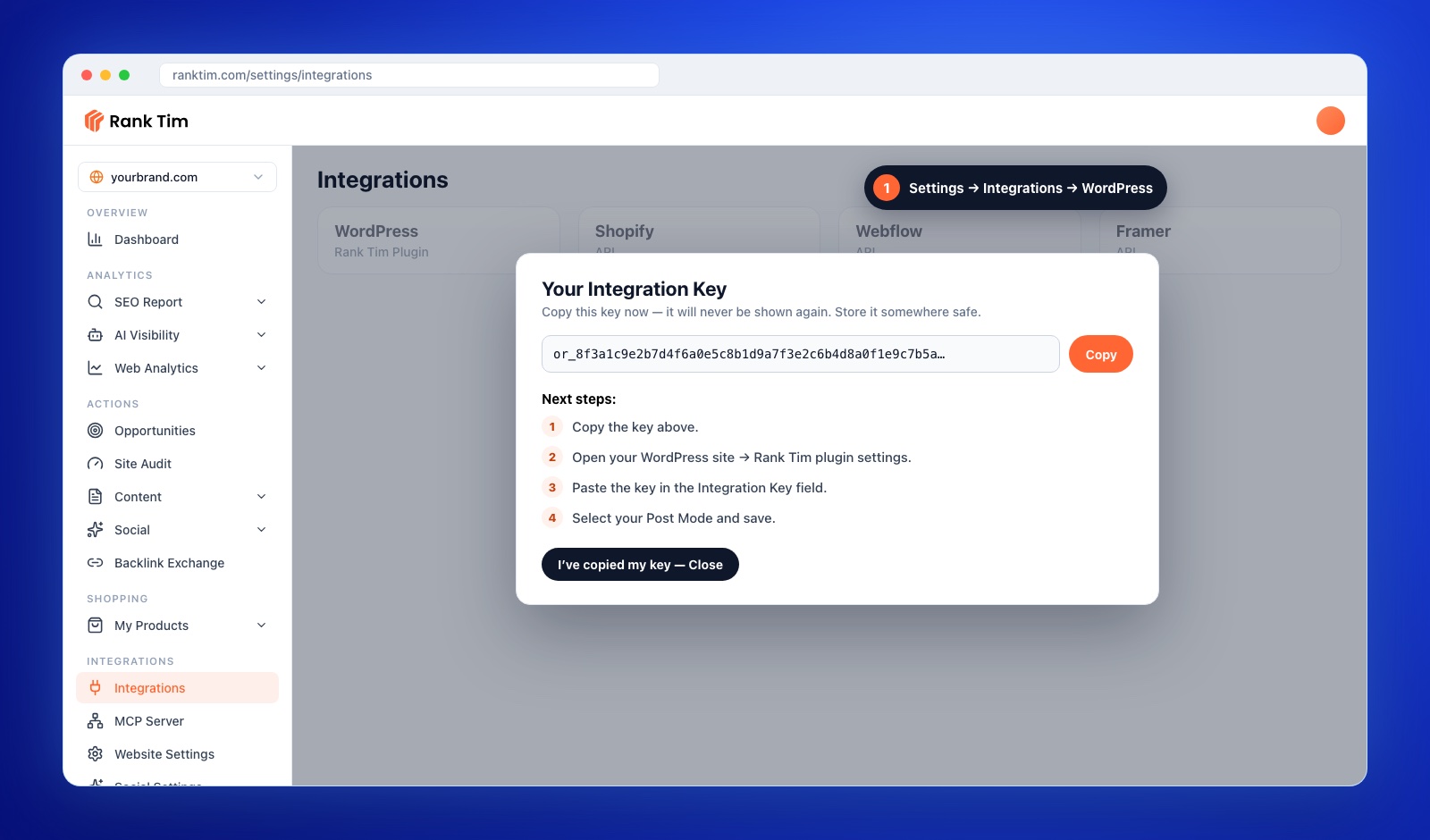
Copy the key immediately. It is shown only once. It starts with or_ followed by 64 characters. If you lose it, you can rotate the key from the same page and paste the new one into WordPress.
Step 3: Install and Activate the Ranktim Plugin
In your WordPress admin, go to Plugins → Add New Plugin:
- If the plugin directory shows "Ranktim – AI Content Writer & SEO on Autopilot" when you search for Ranktim, click Install Now, then Activate.
- If you have the plugin as a .zip file, click Upload Plugin, choose the file, then Install Now and Activate.
A new Ranktim item appears in the admin sidebar. The integration docs always point to the current version.
Step 4: Connect and Configure the Plugin
Open Ranktim in the WordPress sidebar. You'll see the Plugin Set Up screen.
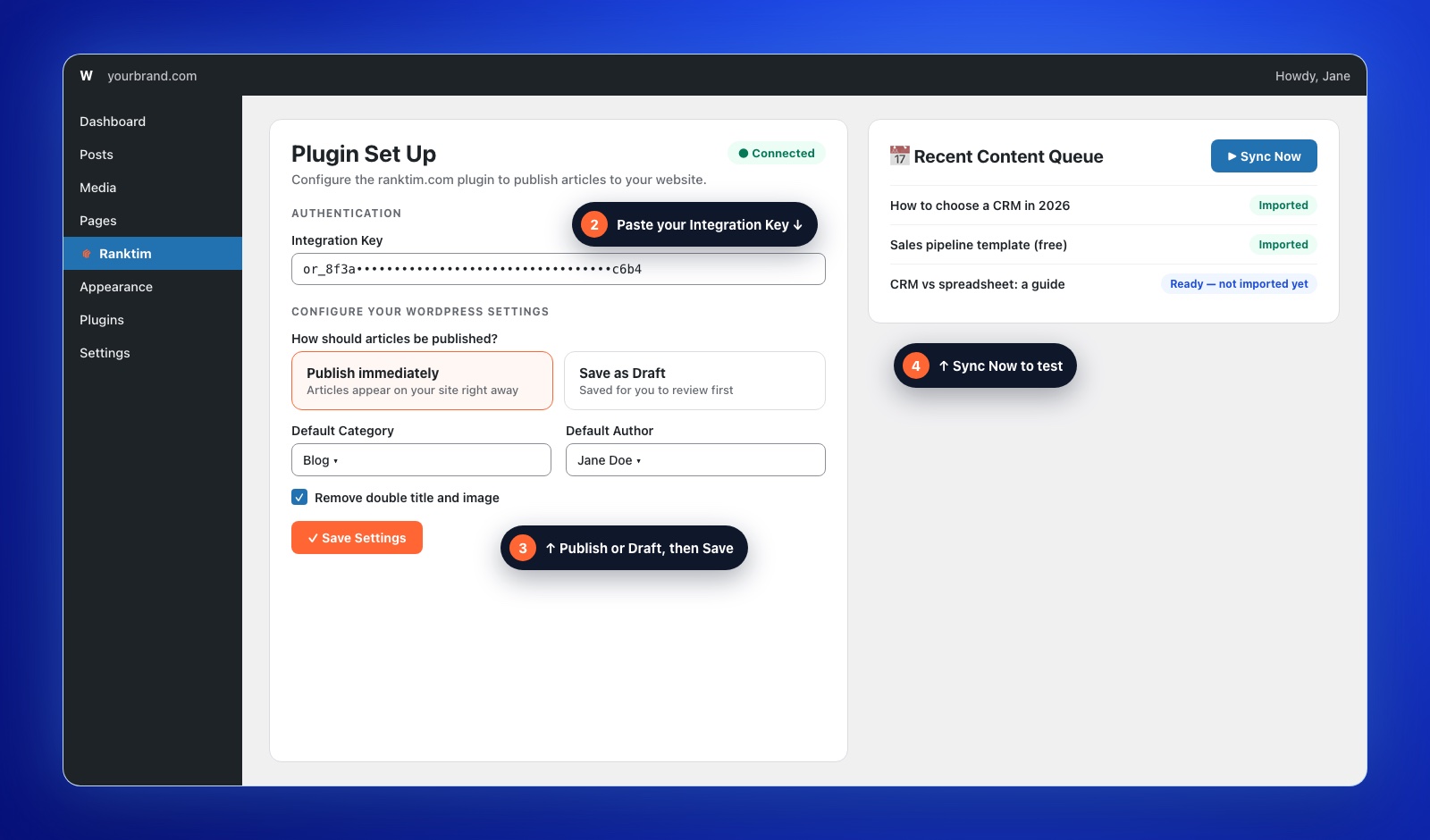
- Integration Key: paste the key from Step 2.
- How should articles be published? Choose Publish immediately or Save as Draft. If you are just starting, use drafts for the first week so you can check formatting on your theme.
- Default Category: where imported articles go, for example "Blog".
- Default Author: the WordPress user shown as the author. Use a real person with a proper author bio, not "admin", because author signals matter for both Google and AI search.
- Default Tags (optional): tags added to every imported article. Hold Ctrl or Cmd to select several.
- Remove double title and image: tick this if your theme already shows the post title and featured image above the content, so they don't appear twice.
Click Save Settings. The status at the top switches to Connected. Changes apply from the next sync.
Step 5: Run the First Sync
You don't have to wait for the schedule. In the Recent Content Queue panel, click Sync Now. The queue lists the articles RankTim has ready for your site and their status:
- Imported: the post was created in WordPress. Click View post to open it.
- Ready — not imported yet: available and will be imported on the next sync.
If the queue is empty, see Troubleshooting below. In most cases the content plan simply has no article scheduled for today or the previous days yet.
Set it up while you read
Content Plan and the WordPress integration are included in the Starter, Content Plus, Pro and Growth plans. The whole setup takes about 15 minutes.
Start Your Free TrialWhat Happens Automatically from Now On
- Every six hours, the plugin checks for today's articles and imports anything new.
- Once a day, it runs a catch-up over the previous 7 days, so articles missed while your site was down still arrive.
- Each article is imported once. The plugin tracks what it has already created, so you never get duplicates.
- The featured image is downloaded into your Media Library, with the article's primary keyword as alt text.
- SEO meta is filled in: SEO title, meta description and focus keyword are written to Yoast SEO or Rank Math.
- Schema is added: each post gets Article or BlogPosting JSON-LD.
Your Integration Key is stored encrypted in WordPress, and the plugin does not send your site content or visitor data to RankTim. It only requests your articles.
Draft or Publish Directly?
| Mode | Best for | Watch out for |
|---|---|---|
| Save as Draft | New setups, regulated industries (health, finance, legal), teams that add expert quotes or internal links by hand | Drafts only help if someone reviews them. Block 15 minutes a day for it. |
| Publish immediately | Established setups where the format is proven and the brand voice is configured | Spot-check a few posts a week so quality issues don't accumulate. |
A good middle path: start with drafts, review the first 5 to 10 articles, adjust Brand Voice and your plan's context, then switch to publishing directly.
Make Automated Articles Rank (and Get Cited)
Automation handles consistency. Ranking still depends on quality and signals you control:
- Add one thing only you can add to each article: a customer example, your own data, a screenshot from your product or an expert opinion. This is what separates you from generic AI content.
- Link new articles to your money pages and to each other. Topic clusters rank better than isolated posts.
- Use a real author with an author page and consistent profiles.
- Refresh older articles instead of only adding new ones. Our content refresh guide shows how to find the right candidates.
- Check AI readiness: make sure AI crawlers can access your blog and that key answers come first. Follow our tutorial on optimizing your website for AI search.
Then measure: track the articles' keywords in the Rank Tracker and check whether they start appearing in AI answers with AI visibility tracking.
Troubleshooting
"Invalid Integration Key"
The key must start with or_ followed by 64 hexadecimal characters. Copy it again without spaces or line breaks. If the original is lost, rotate the key in Settings → Integrations and paste the new one.
The queue says no articles were found
The plugin looks at today and, during the daily catch-up, the previous 7 days. Check that your content plan has articles scheduled in that window and that they have finished generating.
Articles arrive as drafts when you expected live posts
Check the publish option in the plugin settings, click Save Settings, and run Sync Now. New settings apply from the next sync, not to posts already imported.
Syncs happen late or not at all
The schedule runs on WP-Cron, which only fires when someone visits your site. On low-traffic sites, or if your host disables WP-Cron, set up a real server cron job that calls wp-cron.php, for example every 15 minutes:
*/15 * * * * curl -s https://yourdomain.com/wp-cron.php?doing_wp_cron > /dev/nullFeatured images are missing
Your host or a security plugin may block downloading remote images. Allow outgoing requests from WordPress, then run Sync Now again.
The title or image appears twice
Turn on Remove double title and image in the plugin settings.
Frequently Asked Questions
Does the plugin write the articles?
No. The articles are planned and written in your RankTim account. The plugin connects WordPress to that account and imports what is ready.
Will it overwrite my existing posts?
No. It only creates new posts for articles it hasn't imported yet, and it never imports the same article twice.
Does it work with Yoast SEO and Rank Math?
Yes. The SEO title, meta description and focus keyword are written to whichever of the two you use.
Can I connect more than one WordPress site?
Yes. Create a separate integration and key for each site in Settings → Integrations.
Is AI-generated content bad for SEO?
Google's guidance focuses on whether content is helpful and original, not on how it was produced. Automated articles that are accurate, edited and enriched with your own expertise can rank; thin, unedited content at scale is what gets filtered out.
Consistency is the unglamorous advantage in SEO. Set the publishing step up once, spend your time on the parts only you can add, and let the calendar take care of itself.
Put Your Blog on Autopilot, Without Losing Control
RankTim plans, writes and optimizes SEO articles, then publishes them to WordPress on schedule, as live posts or drafts for your review.
Start for Free
Catalin Dinca
Written by Catalin Dinca